For the complete documentation index, see llms.txt. This page is also available as Markdown.

Signals

AI-powered security signals, proactively surfaced across your entire environment

Signals is a daily feed of decision-ready security risk signals, surfacing what Sola's autonomous intelligence layer detected and prioritized across your connected data sources.

Each day, Sola analyzes your entire environment and surfaces what matters most right now. Every signal has already been investigated before it reaches you, arriving with context, reasoning, and recommended actions pre-assembled, ready for your team to act on.

Lumina Signals
Your most critical risks, pre-investigated and prioritized across your entire environment

Sola understands every resource and the connections between them, identifying deviations and risk patterns, and grouping related assets into signals. Each signal represents a compression of thousands of data points into a focused set of meaningful risk clusters, scored and prioritized based on what each asset means to your organization.

The most critical signals are surfaced in your daily feed. This is a live feed that changes with your environment, not an alert queue. There are no open or closed states. If a risk is resolved, it disappears. If it persists, it reappears.

Signals operate at the workspace level, giving you a unified view across all your connected data sources.

What makes Signals different

  • Intelligent grouping: thousands of findings compressed into meaningful risk clusters

  • Cross-domain: all connected sources analyzed as one unified environment

  • Context: risk scoring specific to your organization, not a generic average

  • Always fresh: daily analysis, live feed, reflects your environment right now

  • Pre-investigated: every signal arrives with context, reasoning, blast radius, and recommended actions already assembled

Signals includes three main views:

  1. Feed - A curated feed of your top signals, organized by security domain. Includes a personalized highlights brief summarizing the key themes and top priorities across your environment.

  2. List - A ranked list of the top signals surfaced for your environment.

  3. Matrix - A Risk vs. Anomaly scatter plot for visual prioritization across your signals.

Lumina Signals - Feed
Feed
Lumina Signals - List
List
Lumina Signals - Matrix
Matrix

How Signals works

Signals is powered by Sola's intelligence layer, a combination of AI reasoning, graph analysis, and security domain expertise that processes signals across all your connected data sources.

Each day, Sola runs the following process:

1

Collects and unifies signals

Ingests data from all connected sources of your assets, identities, and relationships to create a single unified view.

2

Maps your environment as a relational graph

Understands how resources interact, exposing dependencies, access paths, and potential blast radius. Learn about Sola's security graph.

3

Identifies and evaluates risk signals

Analyzes risks across different security domains (misconfigurations, anomalies, attack paths, toxic combinations) in full context, not in isolation.

4

Applies contextual reasoning and clustering

Groups related assets into meaningful risk patterns using environment, usage, and context.

5

Surfaces what actually requires attention most

Outputs the top, focused, high-confidence signals, centrally ranked across all connected domains by impact and urgency. The most critical risks always rise to the top.

The result: A curated, prioritized feed of the most critical signals across your entire environment, in one unified view.

Context

Sola uses context to understand your environment and refine risk scoring.

Context is a set of AI-inferred labels describing each asset's role, environment, and exposure profile. These labels are a key part of what makes risk scoring specific to your organization, rather than a generic industry average.

Context adjusts severity scoring in both directions. A finding can be amplified (for example, from High to Critical if the asset is production-critical) or downgraded (for example, from Critical to High if it applies to a non-production environment). When context changes a finding's severity, the signal shows both the original and adjusted score.

Business context

Business context labels are inferred automatically from asset configurations, tags, names, and relationships, factoring in business function, data sensitivity, environment classification, and blast radius. They reflect what each asset actually is, how critical it is to the business, and how far a compromise could spread.

Labels are displayed in Category: Value format, for example:

  • Environment: Production

  • Control Role: Orchestrator

  • Data Type: Regulated / Sensitive

  • Blast Radius Category: Identity Control Plane

Click any label on a signal to see the AI reasoning behind it, including why it was assigned and how many assets it applies to.

Adding business context

Sola infers business context automatically, but you can add context it cannot learn on its own, such as naming conventions, environment classifications, or asset priorities specific to your organization. When you add context in plain language, Sola maps it to the same business context labels and applies it across your environment, adjusting severity scoring for the affected signals.

When change apply

Context updates take effect from the next daily analysis. Changes you add today will be reflected tomorrow.

Click + Context to open the context window.

Each entry includes:

Description

The plain-language input describing this context rule, as entered by the user.

AI Description

The context rule as Sola interpreted and applied it.

Category

The type of business context defined, such as environment type, resource role, or data type. For example: Environment, Functional Role, Control Role.

Impact / Value

The value assigned to the selected category and how it affects risk scoring across your assets. For example: Production, Core Business Function, Orchestrator.

Applies to

Where this context applies: all resource types (Global) or a specific type, such as aws_s3_bucket.

Affected Signals

The signals affected by this context rule.

Context type

The category of context this rule belongs to.

Created by

Who added the context entry.

Reviewing signals

Your signals are available to review in the Feed and the List views.

The Feed gives you a curated view of your top risks, and the List shows the full picture ranked by risk score.

Open any signal for a full breakdown of the risk, assets, and recommended actions, or start a chat to investigate further.

Feed

The Feed view displays your top signals organized by security domain, with each domain showing the two highest-priority signals and an option to view all for that domain in the List.

View all on any domain opens the List view filtered to that domain, showing all of its signals.

Each signal card shows the Sola risk score, signal title, and a short summary of the risk and its impact, along with the connected data sources, the number of assets and findings, and a signal ID you can use to reference it in chat.

The toolbar helps you find and focus your signals:

  • Search: find signals by keyword

  • Unreads: show only signals you haven't reviewed

  • Sort: change the sort order

  • Domains: filter by security domain

  • Select: enter selection mode for bulk actions

To mark a signal as read, open the actions menu on its card and select Mark as read.

List

The List view displays all your signals ranked by risk score, available in card view or table view.

Each signal card highlights the most important details you need at a glance, including the Sola Risk Score, signal title, connected data sources, number of assets and findings, and when the signal was last calculated.

Exploring a signal

Click any signal to open a detailed breakdown across five tabs: Overview, Business context, Assets, Findings, and Graph view.

Every signal panel shows the Name, Sola Risk Score, and Labels at the top, visible across all tabs. The Sola Risk Score is a 0–10 score where the color indicates severity level: Critical, High, Medium, Low, or Info.

1. Overview

The Overview tab gives you a full overview of the detected risk, the assets involved, and the recommended steps to address it.

Lumina - Signal list sidepanel - overview

Summary

A description of what was detected and why it matters.

Integrations

The connected data sources associated with the signal.

Asset type

The type of resource from your connected data sources at the center of this signal, such as a user, role, or cloud resource.

Configuration anomaly

How statistically unusual the asset's configuration is compared to similar assets: Baseline, Moderate, Strong, or Extreme.

Business context

AI-inferred labels describing the role, environment, and exposure profile of the assets involved. Click any chip to see the full detail in the Business Context tab.

Recommended Remediations

Recommended steps to address the risk, listed in order of priority.

2. Context

The Context tab shows the labels assigned to assets in this signal and the reasoning behind each one.

Lumina - Signal list sidepanel - Business context

Labels are displayed as chips in the format Category: Value, for example: Control Role: Orchestrator or Environment: Development.

Click any label to see the AI reasoning behind it, including why it was assigned and the number of assets it applies to.

To refine business context with your own organizational knowledge, click + Context from the main Signals page.

3. Assets

The Assets tab shows all assets associated with this signal.

Expand any asset to see its properties. Business context chips are shown inline for each asset. Properties vary by asset type. Use search and filter to narrow down the list.

Lumina - Signal list sidepanel - Assets

4. Findings

The Findings tab lists all security findings that contributed to this signal.

Each finding shows the name and severity. Expand any finding to see the full description and risk information.

Lumina - Signal list sidepanel - Findings

5. Graph

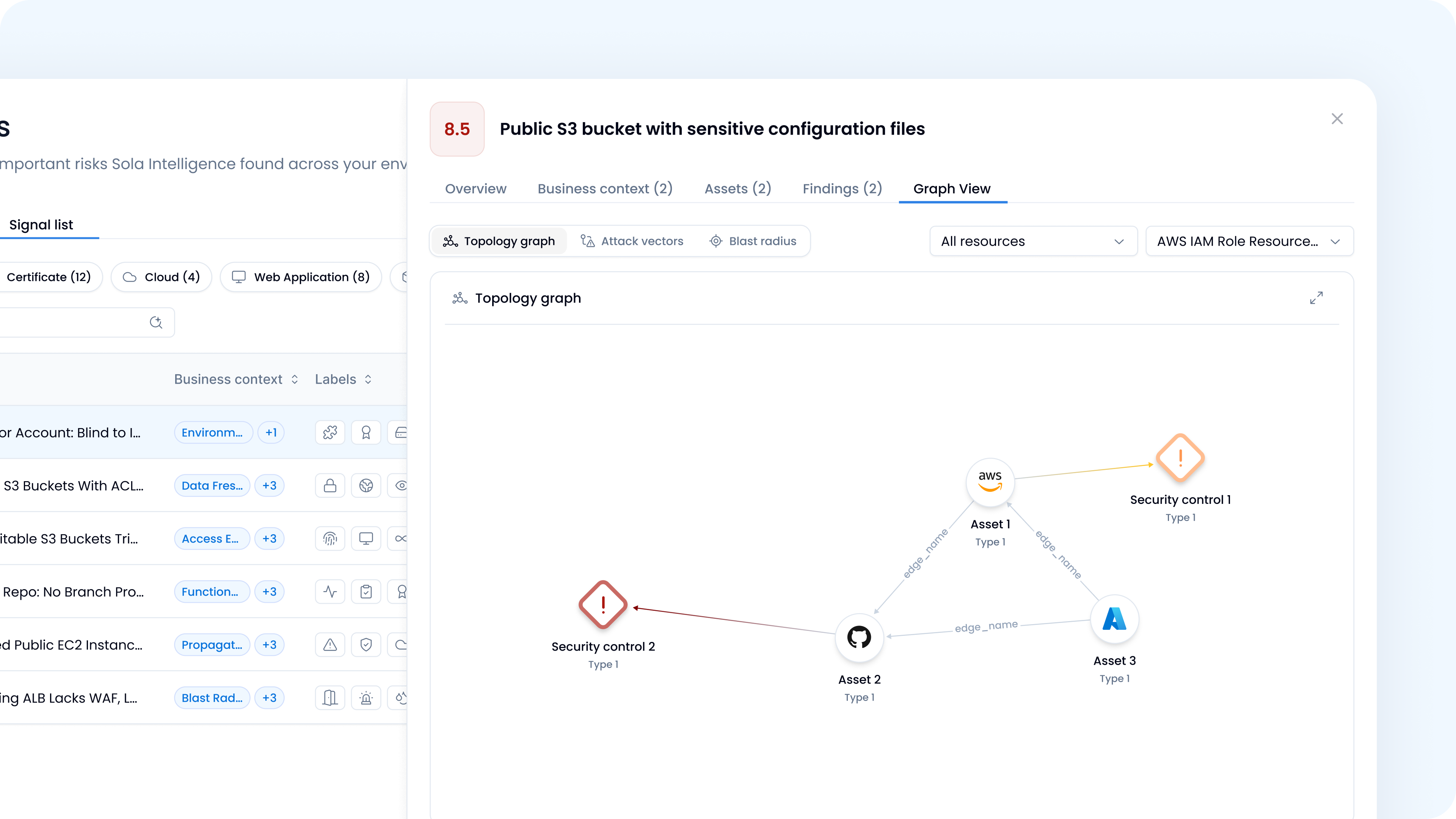
The Graph view tab shows a visual map of the assets involved and how they relate to each other. It can be expanded to fullscreen.

  • Evidence: A visual map of the asset and its relationships.

  • Blast radius: The potential scope of impact if the risk is exploited.

  • Attack vector: How the risk could be exploited.

Lumina - Graph View

Investigating signals in chat

Start a chat to investigate your signals with Sola AI. Sola opens a workspace-level chat grounded in your signal context, where you can ask questions and dig into the details.

Investigate any signal in a chat

There are three ways to start a chat:

  • From the chat box: type any question in the Ask anything about your signals box at the bottom of the feed to open a chat grounded in your signals.

  • From a signal: open the actions menu on a signal card and select Start chat to open a chat preloaded with that signal's context.

  • From multiple signals: click Select, choose the signals you want to explore, and start a chat with context from all of them in one session.

Acting on insights

Once you've reviewed an insight, there are several ways to act on it.

Each insight includes a prioritized list of recommended steps to address the risk. Review them in the Summary tab and assign or action them as needed.

Save as a query or configure as an alert

From the Findings tab, review the findings that contributed to an insight to understand the underlying risk in detail. From there, save any finding as a query to use in a canvas or workflow, or configure it as an alert to monitor it going forward.


FAQs

How can I get Signals?

Signals is available on paid plans. Contact Sola to learn more.

How does Signals work?

Signals is powered by Sola's intelligence layer, which processes signals across all your connected data sources daily. For a full breakdown of the process, see How Signals works.

Who can access Signals?

Signals is available to workspace Admins and Owners. At least one data source must be connected to your workspace to generate insights.

What data sources does Signals support?

Signals works with any data source connected to your Sola workspace.

Support for third-party security tools is currently not yet part of Signals. We're working on expanding coverage to include them.

How often is my feed refreshed?

Signals generates a fresh set of signals every day. Each daily feed reflects the latest analysis of your environment based on your connected data sources.

Why don't I see the same insights every day?

Signals is a live feed, not an alert queue. Each day's view reflects a fresh analysis of your environment. If a risk is resolved, it disappears. If it persists, it reappears.

Can I customize how signals are scored?

Yes, click Add context to provide organizational knowledge, such as environment type, resource role, or data type, that influences how risks are scored and prioritized.

What is Sola's intelligence layer?

Sola's intelligence layer is the engine that powers Signals.

It combines AI reasoning, graph analysis, and security domain expertise to process signals across all your connected data sources, map relationships between assets, and reason across your entire environment to surface high-confidence, prioritized signals.

Can I investigate signals in Sola AI chat?

Yes. Start a chat from the chat box at the bottom of the feed, from a single signal, or from several signals at once, and Sola opens a chat grounded in your signal context. Use it to run a deep investigation into specific findings, or to ask broader questions about risk posture and prioritization.

You can also ask risk and posture questions from any workspace or project chat. When you're in the Signals context, Sola routes them to the Signals specialist and surfaces the relevant signals.

Last updated

Was this helpful?